|
|
|||||||||
|

|

|

|

|

|
|
|
|||||||||
|
|
|
|
|
|
These steps show you how to activate Shaderlight if there is NO internet connection on the computer with Shaderlight installed.
Step 1: On the computer WITH Shaderlight installed:
| • | From the SketchUp Plugins menu, select Plugins->Shaderlight for SketchUp->Activate Shaderlight |
| • | From the Activation dialog box select the Manual Activation button |

| • | Note down the Machine ID number |
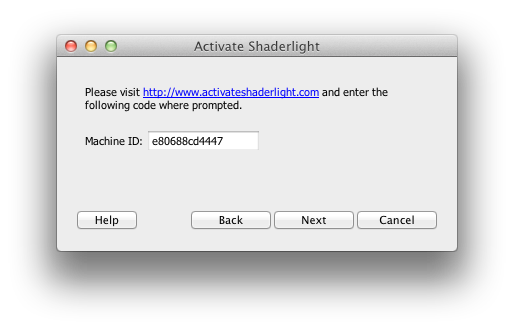
| • | Leave this box up and go to a computer with an internet connection |
Step 2: On a computer WITH an internet connection:
| • | Visit www.activateshaderlight.com using a web browser |
| • | In the activation web page, enter your 16 digit Activation Code (received via email when you purchased Shaderlight or requested a trial) |
| • | Enter the Machine ID you noted above |
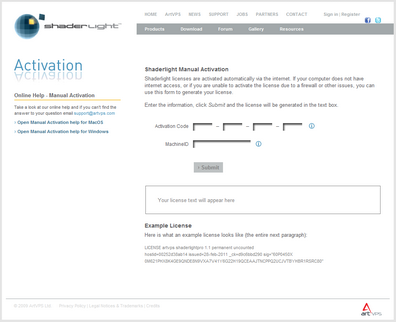
| • | Click Submit to generate the license text |
| • | The license text should look something like this: |
LICENSE artvps shaderlightpro 1.1 permanent uncounted
hostid=00252d38ab14 issued=28-feb-2011 _ck=d9c6bbd290 sig="60P0450X
0M621PHX8K4GE9QNDE8N9VXA7V41Y6G22H19QCEAAJTNCPPQ2UCJVTBYHBR1RSRC80"
| • | Copy and paste the license text into a text file that you can save and take across to the Shaderlight computer. You can copy the text file with the license on it onto a memory stick, or use your internal network |
| • | Return to the computer with Shaderlight Installed |
Step 3 : On the computer WITH Shaderlight installed
| • | Click Next on the box displaying the Machine ID |
| • | Paste the license text from the text file you created in Step 2 into the box marked "Paste license text here" |
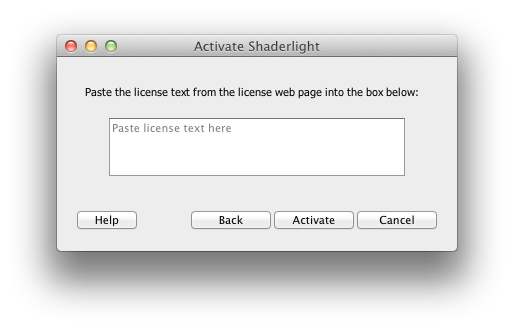
| • | Click Done |
| • | If the license is valid you will see the following box. If the license fails you will be asked to re-enter it |
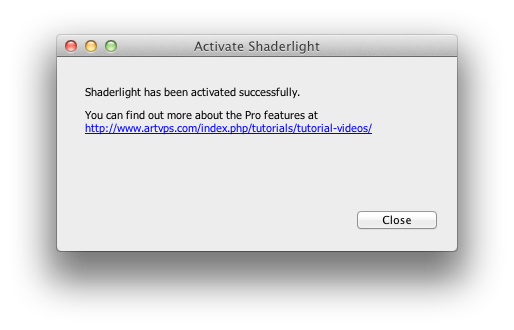
| • | Click OK to complete activation |
| • | You must close the Shaderlight Render Window and restart SketchUp in order to activate the Pro features |
If Activation Fails:
|
Related Topics
Manual Activation with Internet


